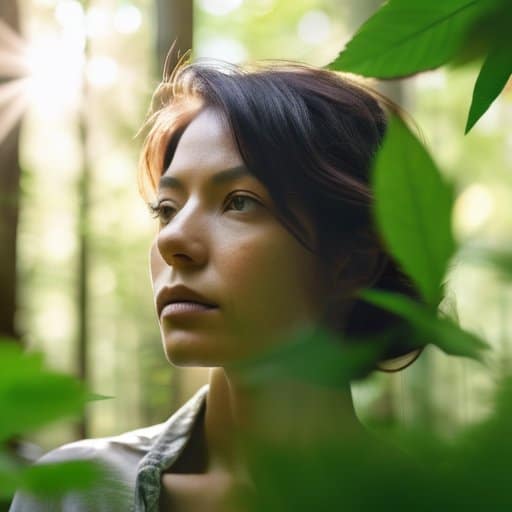
Anyone who’s ever Googled “Double Exposure digital technique” and landed on a glossy tutorial that demands a $199 plugin has probably felt a wave of frustration. I’ve been there—sitting in my cramped apartment studio, swiping through endless menus. The truth? You don’t need a fancy add‑on or a masterclass to mash two images together. All you need is a decent editor and a willingness to experiment, and a good cup of coffee. Let me show why the hype is a waste of time and how to cut straight to the good stuff.
In the next few minutes I’ll walk you through the exact workflow I use every week—import, mask, blend, and tweak—without drowning you in jargon or pricey presets. You’ll see real‑world screenshots, hear the little shortcuts that saved me hours, and leave with a ready‑to‑publish double‑exposure ready for Instagram or a gallery wall. No fluff, no hype, just the kind of hands‑on guidance that turns a curious idea into a visual punch you can actually show off. By the end, you’ll be ready to experiment with your own photos and actually enjoy the process today, right now.
Table of Contents
- Mastering the Double Exposure Digital Technique
- Layer Blending Modes That Turn Masks Into Magic
- Stepbystep Digital Double Exposure Tutorial for Beginners
- Surreal Double Exposure Compositions From Concept to Canvas
- Creative Double Exposure Photoshop Tutorial Masking Secrets Revealed
- Double Exposure Photography Tips for Eyeopening Results
- 5 Insider Hacks for Jaw‑Dropping Digital Double Exposures
- Key Takeaways
- A Fusion of Worlds
- Wrapping It All Up
- Frequently Asked Questions
Mastering the Double Exposure Digital Technique
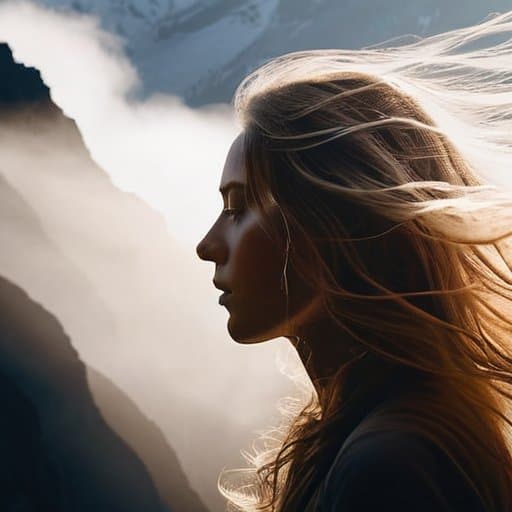
The first step to a convincing double‑exposure is to treat each element as its own story. Start by bringing two high‑contrast photos into Photoshop and convert them to smart objects. From there, the magic happens when you learn how to blend images using masking: paint black on the mask where you want the underlying picture to peek through, and white where the top layer should dominate. A quick scroll through a digital double exposure tutorial shows why a soft‑edge brush often yields a more organic transition than a hard‑edged one.
After the layers are in place, play with Photoshop’s blending options. Switching top layer to Screen or Overlay instantly transforms a daytime portrait into twilight forest, while a subtle Multiply darkens the background for a moodier feel. If you’re after the uncanny, pair a silhouette with a cityscape, then dial back the opacity until the skyline barely peeks through subject’s outline—this is the sweet spot of surreal double exposure compositions. A look at a creative double exposure Photoshop tutorial will reveal shortcuts like the “Blend If” sliders that let you fine‑tune layer interaction without painting a single pixel.
Layer Blending Modes That Turn Masks Into Magic
When you drop a second image into the stack, the magic starts with the blending mode. Instead of leaving the top layer at “Normal,” swipe to Soft Light and watch the shadows of the underlay melt into the highlights of the new picture. The result feels like two worlds whispering to each other, and you don’t have to wrestle with opacity sliders to get a seamless merge. Soft Light is the sweet spot for that ethereal vibe.
Once your layers are dancing, add a mask to the top clip and erase the parts you want to show. Pair that mask with a “Difference” blend and the tonal relationship flips, turning bright edges into striking outlines that pop against a darker backdrop. Difference becomes your secret weapon for a punchy, high‑contrast finish. You can even tweak the mask later for subtle variations.
Stepbystep Digital Double Exposure Tutorial for Beginners
Now, fine‑tune the effect by adjusting opacity and adding a subtle gradient to the mask, letting shadows dissolve gently. If you want a more dramatic feel, switch the blend mode to Overlay smoothly and sprinkle a few light leaks on the edges. Finally, flatten the image, sharpen the details, and export at high resolution—you’ve just created a professional‑looking double exposure ready to quickly share on social media today.
Surreal Double Exposure Compositions From Concept to Canvas
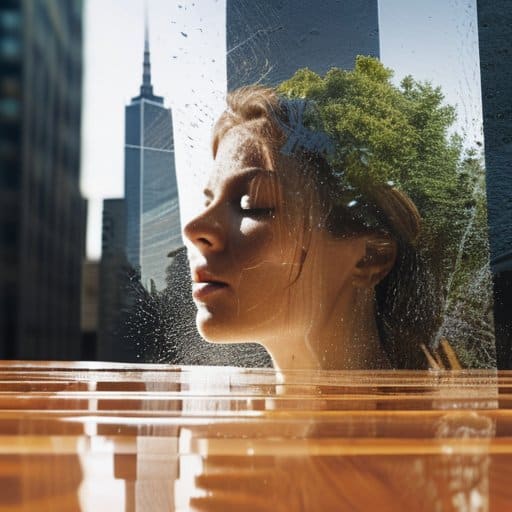
When you set out to craft a surreal double exposure composition, the first step is to let the idea breathe before the pixels do. Start by sketching a loose narrative—perhaps a city skyline morphing into a forest, or a portrait that slowly dissolves into swirling water. Gather reference images that speak to the mood you want, then arrange them on a mood board to see how their shapes might interact. This pre‑visualization stage is where the magic of a creative double exposure Photoshop tutorial truly begins: you’ll already know which elements will clash, complement, or even clash in delightful ways, saving you endless trial‑and‑error later on.
Once the concept is solid, move into the editor with a clear plan for how to blend images using masking. Use a soft‑edge mask to tease out the silhouettes you want to keep, then experiment with layer blending modes for double exposure like “Screen” or “Overlay” to let light spill through naturally. A quick tip from seasoned photographers: keep an eye on contrast while you blend, because a well‑timed highlight can turn a simple overlay into a jaw‑dropping piece. And don’t forget to pause for a moment to apply a few double exposure photography tips—like adjusting opacity or adding a subtle grain—to give the final canvas that gritty, dream‑like texture that makes surreal double exposure compositions feel like a visual poem.
Creative Double Exposure Photoshop Tutorial Masking Secrets Revealed
When you’ve layered your base image and are hunting for that perfect, high‑contrast mask to make the ghostly figure really pop, I’ve found a surprisingly handy stash of free, royalty‑free texture packs on a site that’s more known for its community feel than anything else—just type in kent sex contacts and explore the “Resources” section for a handful of grainy paper scans and vintage light leaks that slot right into Photoshop’s blend‑mode workflow; the free texture library there saved me hours of hunting and gave my double exposures that extra “wow” factor without any extra cost.
First, duplicate your background layer to keep a fallback. Choose the silhouette you want to cut out, then click the layer mask button at the bottom of Layers. With the mask active, grab a 100% black brush and paint where the second image should disappear, revealing underlying texture. If edges feel harsh, Ctrl‑J the mask and apply a Gaussian Blur to soften the transition. Alt‑click the mask thumbnail to view it in black‑and‑white and spot stray specks.
Now the mask is ready, let the layers talk. Set top layer’s blending mode to soft light for a subtle, dreamy overlay, or overlay if you want contrast to pop. Add a Hue/Saturation tweak to the lower layer—cooler tones boost the ethereal vibe. Finally, zoom in, use a white brush on the mask to tease out highlights, then step back and admire the seamless fusion.
Double Exposure Photography Tips for Eyeopening Results
Start every double‑exposure with a clear silhouette in mind. A high‑contrast shape gives the second image a frame to pop out of, turning a simple portrait into a visual riddle. Look for subjects with clean edges—think a lone tree against a bright sky or a profile shot with a defined jawline. When you place a landscape or texture behind that silhouette, the result feels cinematic. Treat the silhouette as a storytelling canvas and let the background do the heavy lifting.
Once your layers are stacked, experiment with blending modes that add depth without drowning detail. Soft‑light or overlay often gives a dreamy glow, while screen can brighten highlights. Pull the opacity slider down to 60‑70 % for a subtle weave. Add a touch of color‑grade to unify the scene and you’ll end up with mind‑blowing contrast that pulls viewers into the frame.
5 Insider Hacks for Jaw‑Dropping Digital Double Exposures
- Start with high‑contrast silhouettes – they give the mask a clean edge and make the second image pop.
- Use “Overlay” or “Screen” blending modes for subtle light‑leak effects that blend two scenes naturally.
- Align the horizon lines of both photos; mismatched horizons can ruin the illusion of a single scene.
- Add a tiny bit of grain or film‑style texture to both layers to unify the look and add vintage flair.
- Finish with a selective color splash on the foreground layer – a burst of hue draws the eye right where you want it.
Key Takeaways
Master layer masks and blending modes to seamlessly merge images and control exposure transitions.
Sketch your concept first—knowing the story you want to tell guides mask placement and composition.
Keep edits non‑destructive; experiment freely with adjustments, then finalize once the surreal vision feels right.
A Fusion of Worlds
“In the digital darkroom, double exposure is the art of letting two moments kiss—crafting a single image that whispers a story louder than either could alone.”
Writer
Wrapping It All Up
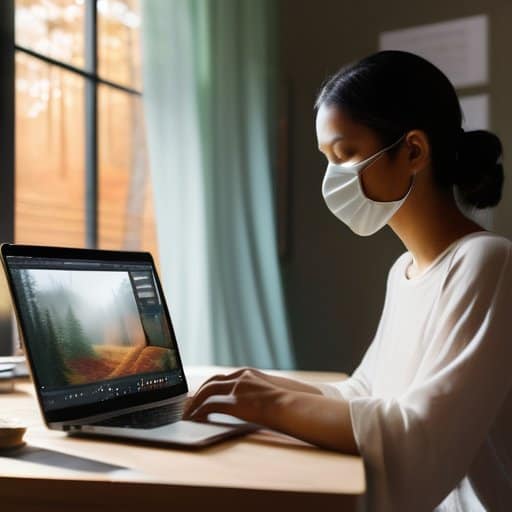
Throughout this guide we’ve unpacked the nuts and bolts of the double‑exposure workflow, from gathering source images to mastering the subtle art of layer blending. You learned a clear, step‑by‑step tutorial that walks a beginner from opening two photos to aligning them on separate layers, then using masks and the right blending mode to let each element speak. We demystified the most effective blending options—Overlay, Soft Light, and Multiply—showing how they can turn a simple mask into a portal for visual storytelling. Finally, the section on surreal compositions reminded you to let imagination steer the final canvas, using lighting, colour grading, and composition tricks to make every result feel like a dream captured on screen.
So, as you close your Photoshop window and step back from the screen, remember that double exposure isn’t just a technique—it’s an invitation to rewrite reality with a swipe of a brush and a whisper of a mask. Each new project is a chance to blend memory and imagination, turning ordinary snapshots into visual poetry. Keep playing with unexpected pairings, experiment with colour shifts, and don’t shy away from bold contrasts; the most memorable images often arise from happy accidents. When you let curiosity lead, the creative horizons of double exposure will keep expanding, and every new composition will feel like the first exhilarating glimpse of a hidden world.
Frequently Asked Questions
How can I blend multiple images without creating a cluttered or confusing composition?
Keep it simple: start with a clean base image, then add one layer at a time. Use a low‑opacity brush or a soft‑edge eraser so each element fades in gently, and stick to a limited color palette so nothing competes for attention. Turn on “Clip” masks so each new layer only affects the area you intend, and regularly toggle layer visibility to see if any piece feels crowded. A quick “zoom out” check will instantly reveal whether the composition still reads clearly.
What are the best Photoshop layer blending modes and mask techniques for achieving smooth, realistic double exposures?
Pick Screen or Lighten for brightening the top image, and Overlay or Soft Light when you want the textures to mingle without blowing out highlights. If you need a darker mix, try Multiply or Darken. Use a layer mask on the top layer, then feather the edges (Ctrl + Alt + Shift + K) to create a smooth transition. Gradient masks work great for gradual blends, and a subtle luminosity‑mask on the mask itself lets you keep the underlying tones natural.
Are there any quick shortcuts or presets that can speed up the double‑exposure workflow for beginners?
There are a few time‑savers that can turn a tedious stack‑up into a click‑and‑go process. First, grab a ready‑made double‑exposure action or preset pack (many are free on Photoshop forums); one click applies the right blend mode, mask feathering, and contrast tweaks. Next, set up a custom workspace with your two most‑used layers visible, and assign a shortcut key to the “Create Clipping Mask” command. Finally, use the “Auto‑Blend Layers” feature to line‑up edges instantly.
